Guides
Writing notes
Write the way you already do in Obsidian. Most of what you use renders on the site the same way, and a few note properties let you fine-tune titles, dates and addresses.
What works
| Feature | Write | On the site |
|---|---|---|
| Links | [[Note]], [[Note|text]], [text](Note.md) | A link to the note, or plain text if it isn't published |
| Heading links | [[Note#Heading]] | Jumps to the heading |
| Block links | [[Note#^id]] | Jumps to the block marked ^id |
| Embeds | ![[Note]], ![[Note#Heading]], ![[Note#^id]] | The note, section or block shown inline, in a box |
| Images | ![[photo.jpg]], ![[photo.jpg|300]], ![[photo.jpg|300x200]] | The image, optionally resized. Add a description for screen readers and search engines: ![[photo.jpg|Ripe tomatoes|300]]. Without one, the file name is used, unless it's a camera or screenshot name like IMG_2034.jpg |
| Image placement | ![[photo.jpg|center]], ![[photo.jpg|right|200]], ![[photo.jpg|A harbor at dusk|100]] | Centered, or floated left or right with the text flowing around it (stacked on phones). Other text is the image's description for screen readers. Click an image on the site to see it full size |
| YouTube, Vimeo | ,  | An embedded player. YouTube plays from youtube-nocookie.com and Vimeo with “do not track”, and nothing loads until the player scrolls into view |
| Canvas | [[Board.canvas]], ![[Board.canvas]] | A page with the canvas's cards and arrows, or the board shown inline. See Canvases |
| PDF, audio, video | ![[paper.pdf]], ![[talk.mp3]], ![[demo.mp4]] | An inline viewer or player |
| Tags | #idea, #projects/kvist | A link to the tag's page; nested tags have their own pages |
| Callouts | > [!tip] Title, foldable with [!tip]- or [!tip]+ | Colored boxes; foldable ones open on click |
| Highlights | ==text== | Highlighted text |
| Footnotes | text[^1] and [^1]: note | Numbered notes at the bottom |
| Tasks | - [ ], - [x] | Checkboxes |
| Tables, strikethrough | Standard Markdown | As in Obsidian |
| Code | Fenced code with a language, e.g. ```python | Syntax highlighting, light and dark, and a Copy button |
| Code extras | ```go title="main.go" showLineNumbers {2,4-6} | A title above the block, line numbers (showLineNumbers{10} starts at 10) and highlighted lines, counted as numbered (hl_lines="2 4-6" also works). Also work without a language |
| Math | $e^{i\pi}+1=0$, $$ … $$ | Typeset with KaTeX |
| Diagrams | A ```mermaid code block | A Mermaid diagram |
| HTML | <details>, <kbd>, <iframe>, … | Kept as written. Links and images inside HTML aren't converted, so point them at web addresses |
| Comments | %% hidden %%, <!-- hidden --> | Removed before publishing |
Single line breaks are kept as line breaks, as in Obsidian's reading view. If you turned on Strict line breaks in Obsidian, set strict_line_breaks: true in the settings note and a single line break becomes a space, as there; an empty line still starts a new paragraph.
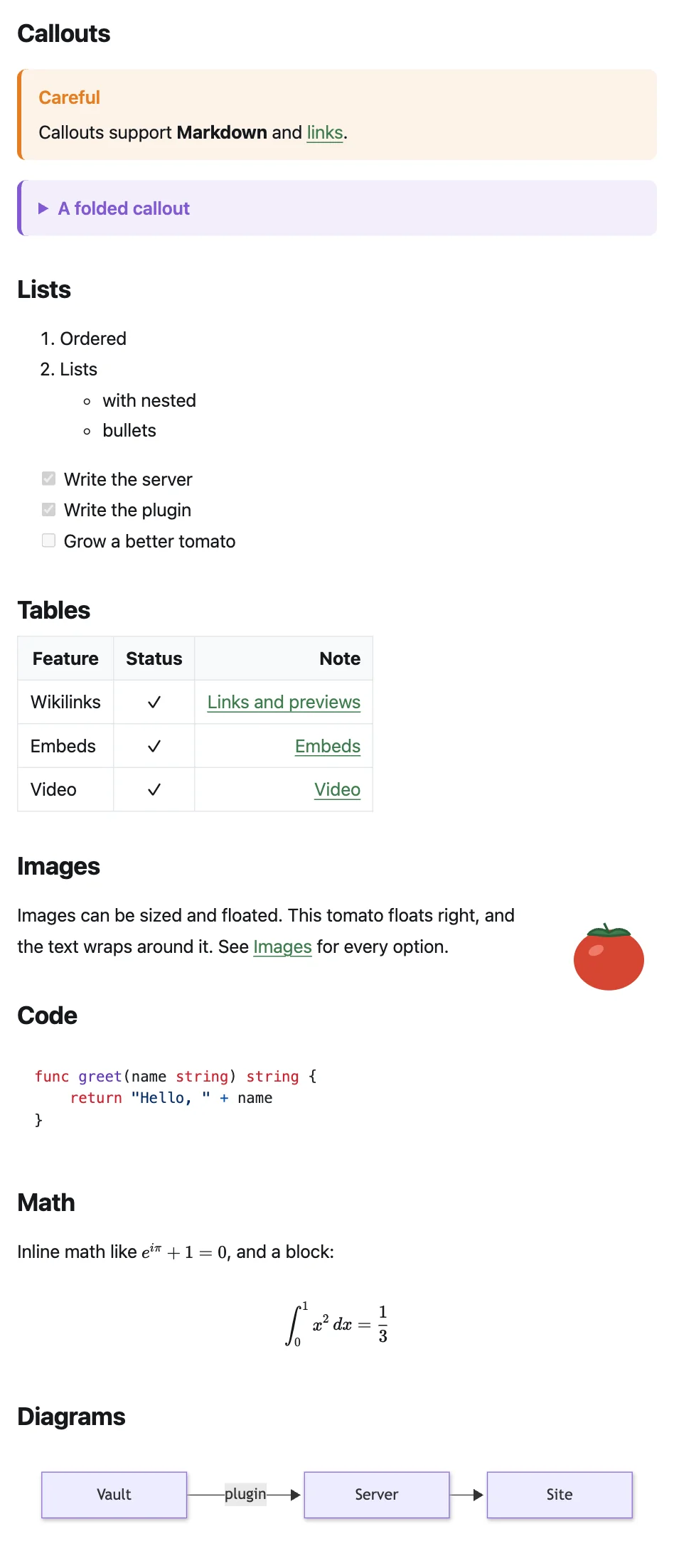
Wikilinks or Markdown links
Both kinds of links between notes work, whichever Obsidian writes for you (Settings → Files and links → Use [[Wikilinks]]). A Markdown link may give the path from the note, like [text](Recipes/Bread.md) or [text](../Other%20note.md), with or without .md and with a #Heading. Embedding another note works only as a wikilink, ![[Note]]; Markdown-style images, , work too. Links to websites ([text](https://…)) work as usual.
What doesn't work (yet)
Queries from plugins like Dataview and Bases, Excalidraw drawings (other than an exported image) and Markdown-style note embeds don't work on the site yet. The Roadmap has the details, and what's planned.
Canvases
A canvas (a .canvas file) is published as a page of its own, with its cards and arrows where you placed them. When the board is wider than the page, it scrolls.
- A canvas in an always-public folder is published by itself. Any other canvas is published when a published note links to it (
[[Board.canvas]]) or embeds it (![[Board.canvas]]), like an image. A canvas in an excluded folder never is. - Text cards are Markdown, with links, embeds and tags as in a note. File cards show the note or image they point to, and link cards are links.
- A card showing a private note or file is left out, together with the arrows to and from it. Its links to private notes are plain text, as in notes.
- Cards showing private notes or files are taken out before the canvas leaves your device, so their names never reach your server. Links to private notes inside text cards go up as written, like links in a note, and become plain text on the site.
- The canvas's address is its name with
-canvasat the end:Board.canvasis at/board-canvas/, so a note namedBoardcan sit beside it. Its title is the file name; canvases have no properties.
Note properties
Properties (frontmatter) at the top of a note control how it appears. All are optional.
---
title: A better title than the file name
description: One sentence for search results and link previews.
created: 2026-09-01
updated: 2026-10-02
tags: [articles, writing]
aliases: [Another name]
permalink: /about/
order: 1
publish: true
stage: budding
---| Property | What it does |
|---|---|
title | The page title. Without it, kvist uses the first # Heading, then the file name. |
description or summary | Shown in lists, search results and link previews. Without it, kvist uses the first paragraph. |
created or date | The “Planted” date. Without it, the “Tended” date. |
updated, modified or lastmod | The “Tended” date, and the order of “Recently tended”. Without it, the time the file was last changed. |
tags | Tags, in addition to the ones written in the text. |
aliases | Other names for the note. Search finds the note by them, and a link to an alias, [[Another name]], goes to the note, even where Obsidian shows it as unresolved. |
order or weight | A number that puts the note at the top of its folder's list, lowest first, ahead of the notes without one. See The order of notes. |
sort | On a folder note: how the folder's notes are ordered, updated, created or title. See The order of notes. |
icon | On a folder note: the folder's icon in the menu, lists and home page cards, instead of the plain folder. Use an emoji, icon: 🌱, or the name of an icon the theme draws, icon: book. See Folder icons. |
permalink | A custom address, such as /about/. |
publish | true or false; see Publishing notes. |
unlisted | true publishes the note at its address but leaves it out of the menu, lists, tag pages, search, the graph, backlinks, related notes, the RSS feed and the sitemap, and asks search engines not to index it (noindex). Links to it still work. A folder with only unlisted notes leaves the menu too. Tags that only unlisted notes carry get no page. |
image or cover | The picture shown when the page is shared on social media or in chats: "[[cover.jpg]]", a vault path, or a web address. The image is published even if the note doesn't show it. Without it, the site makes a picture with the note's title (see social_images). Social media don't show SVG or AVIF, so a note with one of those gets the generated picture too. The same picture shows, made small, beside the note's title in lists and atop its card on folder pages (see list_images). Pictures are cropped from the middle, so keep the subject there. |
stage | Growth stage: seedling 🌱, budding 🌿 or evergreen 🌳, shown as a badge. |
Other properties stay private: they are never put on the site unless the server lists them in expose_frontmatter (which is how stage is enabled in the default config).
Page addresses
A note's address comes from its path inside the folder you publish from: each part is lowercased, and spaces and punctuation become dashes. When you publish one folder (always_public_folders = ["Kvist"]), that folder is the site's root, so Kvist itself doesn't appear in addresses or the menu. The examples below assume that.
| Note | Address |
|---|---|
Kvist/My First Note.md | /my-first-note/ |
Kvist/Recipes/Soup.md | /recipes/soup/ |
Kvist/Recipes/Recipes.md | /recipes/ (a folder note, named like its folder) |
Kvist/Recipes/index.md | /recipes/ (also a folder note) |
Reading list.md, outside Kvist but tagged #public | /reading-list/ |
A note with permalink: /about/ | /about/ |
A note can't take an address the site uses itself, like /tags/: a note called Tags right in your published folder stops the build with a message saying so. Rename it or give it a permalink. To keep the folder in addresses instead, set root_folder = "/" on the server.
Renaming or moving a note changes its address. The server remembers the old one and sends visitors on to the new address, so links from elsewhere keep working. It finds the note again by its path (when only a permalink or a folder changed), by its unchanged text, or by its file name if no other new note has that name. A note that is no longer published isn't redirected to, and writing a new note at an old address replaces the redirect. If two notes would get the same address, the build stops and names both, and your site keeps showing the previous version until you fix it.
Folder notes
A note named like its folder (Recipes/Recipes.md) or called index.md is the folder's folder note. It becomes the folder's page: instead of a plain list of notes, /recipes/ shows the folder note, with the folder's notes in the list beside it. The folder note isn't one of those notes, so it isn't in that list, in the folder's count or among the recent notes on the home page. Its sort property sets the order of the folder's notes, and its icon property the folder's icon. A folder without a folder note still gets a page, with its notes listed.
Folder icons
Give a folder its own icon with the icon property on its folder note:
---
icon: 🍳
---
The icon shows beside the folder in the menu, in the list of notes and on the home page cards. It can be an emoji or the name of an icon the built-in theme draws: archive, book, book-open, briefcase, calendar, camera, chat, code, file, flask, globe, heart, home, image, leaf, lightbulb, mail, map, music, pen, play, star, tag and user. The names follow Lucide, and if you use the Iconize plugin's icon property, its Lucide names (LiBookOpen) work too. A name the theme doesn't know shows the plain folder. The folder note must be published; a folder without one keeps the plain folder.
The order of notes
A folder lists its newest notes first, by their “Tended” date (updated), like tag pages and the home page do. A note without an updated property uses the time its file last changed, which can move when you sync or copy the vault, so give it one to keep its place.
To choose another order for a folder, set sort on its folder note (Recipes/Recipes.md or Recipes/index.md):
sort | Order |
|---|---|
updated | Newest “Tended” date first. The default. |
created | Newest “Planted” date first, so editing an old note doesn't move it. Good for a journal or a blog. |
title | A to Z by title, in the site's language (so Swedish puts Å, Ä and Ö after Z), with numbers in number order: “Part 2” before “Part 10”. Good for reference lists. |
To pin a note to the top, give it an order (or weight) number. Notes with one come first, lowest number first, and the rest follow in the folder's order:
---
order: 1
---
The order is used by the list beside a note, the folder's page and the menu. Subfolders are listed A to Z. A sort value kvist doesn't know is ignored, with a warning in the publish report.
The home page
By default the home page shows your site's title and description, cards for your folders or menu groups, and a list of recently updated notes. To use one of your notes instead, put a note named index.md at the top of your published folder (Kvist/index.md, or Kvist/Kvist.md, named like the folder), or set home in the settings note:
---
home: "[[Welcome]]"
---
The home note is the home page, so it isn't listed in its folder or among the recent notes.
Tags
Every tag on a published note gets a page at /tags/<tag>/ listing its notes, newest first. /tags/ shows every topic as a card with its size, its newest notes and its sub-tags, with a filter and an A–Z or “most notes” order. Nested tags like #projects/kvist get their own page, and the parent tag's page includes them. Tags can also group the menu.
Preview before publishing
To see your site on your computer before publishing, run kvist's preview server. It needs the kvist program (see the command line) and a copy of your server's kvist.toml, so it applies the same rules:
kvist dev --dir ~/Documents/MyVault --config kvist.tomlOpen http://127.0.0.1:1313. The page reloads whenever you save a note.