Start
Getting started
This guide takes you from an empty server to your first published notes. You set up the server once, connect Obsidian, and choose what is public. In a hurry? TLDR: quick setup has just the commands.
Before you begin
You need a server with Docker installed, and Obsidian on your computer. To publish, kvist also needs an address with HTTPS, such as garden.example.com: your own setup, or the ready-made one in Domains and HTTPS. In the examples, replace garden.example.com with your address.
Part 1: the server
-
Download the server files
Log in to the server with SSH and run:
mkdir -p ~/kvist && cd ~/kvist
curl -fsSLO https://raw.githubusercontent.com/klppl/kvist/main/deploy/docker-compose.yml
curl -fsSLO https://raw.githubusercontent.com/klppl/kvist/main/deploy/kvist.toml
You now have:
File What it does docker-compose.ymlRuns kvist in Docker and keeps its data in a Docker volume. kvist.tomlThe kvist settings: your site's address, title and publish rules. -
Set your address and rules
In
kvist.toml, setbase_urlto the address your site will have and give it atitle. Then look at the publish rules:data_dir = "/data" listen = "0.0.0.0:8080" [[site]] id = "garden" # the name you use in the plugin base_url = "https://garden.example.com" # your address title = "My garden" theme = "garden" serve = true [site.publish] always_public_folders = ["Kvist"] # everything in here is public exclude_folders = ["Templates", "Private"] # never public expose_frontmatter = ["stage"]These defaults mean: notes in a
Kvistfolder are published, notes with a#publictag are published from anywhere, andTemplatesandPrivatenever are. Everything else stays private. You can change this any time; Publishing notes explains the options.Leave
data_dirandlistenas they are. They refer to paths inside the container. -
Start it
docker compose up -dDocker downloads kvist and starts it. Check that it answers:
curl http://localhost:8080/api/v1/infoYou should see something like
{"protocol":{"min":1,"max":1},"server":"…"}. kvist is now running on port 8080 of the server, reachable from the server itself. -
Create a token for your computer
A token is the password the plugin uses to publish:
docker compose exec kvist kvist token createIt prints a token that starts with
kvist_. Copy it now: it is shown only once, and the server only keeps a fingerprint of it. -
Give it your address with HTTPS
Visitors and the plugin reach kvist through your address, over HTTPS. The plugin refuses plain
http://, so your token is never sent unencrypted. Point your address athttp://127.0.0.1:8080on the server:- You already run a web server or proxy (nginx, Caddy, Traefik, a Cloudflare Tunnel): forward your address, all of it, to
127.0.0.1:8080. - You don't: Domains and HTTPS has a ready-made setup that gets a certificate on its own. It takes a few minutes.
Check from your own computer that
https://garden.example.com/api/v1/infoanswers like before. The site itself shows “404 not found” until you publish for the first time. That's expected. - You already run a web server or proxy (nginx, Caddy, Traefik, a Cloudflare Tunnel): forward your address, all of it, to
Part 2: the Obsidian plugin
-
Download the plugin
kvist isn't in Obsidian's community plugin list yet, so you install it by hand. Download kvist-plugin.zip; the link always gives you the newest version. Unzip it: it holds a
kvistfolder with the whole plugin. -
Put it in your vault
Move the
kvistfolder into your vault's.obsidian/plugins/folder, so you have<vault>/.obsidian/plugins/kvist/. Createpluginsif it doesn't exist. The.obsidianfolder is hidden: on a Mac, press Cmd+Shift+. in Finder to show it. Or from a terminal (replace the path with your vault's):VAULT=~/Documents/MyVault mkdir -p "$VAULT/.obsidian/plugins" curl -L -o /tmp/kvist-plugin.zip https://github.com/klppl/kvist/releases/latest/download/kvist-plugin.zip unzip -o /tmp/kvist-plugin.zip -d "$VAULT/.obsidian/plugins"In Obsidian, open Settings → Community plugins. If Restricted mode is on, turn it off. Click the reload button next to Installed plugins and switch kvist on.
-
Connect it to your server
Open Settings → kvist and fill in:
Setting Value Server URL https://garden.example.comSite garden(theidfromkvist.toml)Token The token from step 4 Press Test. You should see connected to “garden”. If not, see Troubleshooting.
Part 3: your first publish
-
Choose a few public notes
With the default rules, the easiest start is to create a folder called
Kvistin your vault and put a note or two in it. (The name is just the default. Use any folder you like by changingalways_public_foldersinkvist.toml.) To publish a note that lives elsewhere, add the#publictag to it, or run the command kvist: Toggle publish for current note, which setspublish: truein its properties. -
Publish
Open the command palette (Cmd+P or Ctrl+P) and run kvist: Publish now. After a few seconds you see published 2 notes, and the kvist icon in the status bar turns into ●.
Open your address in a browser. Your notes are there.
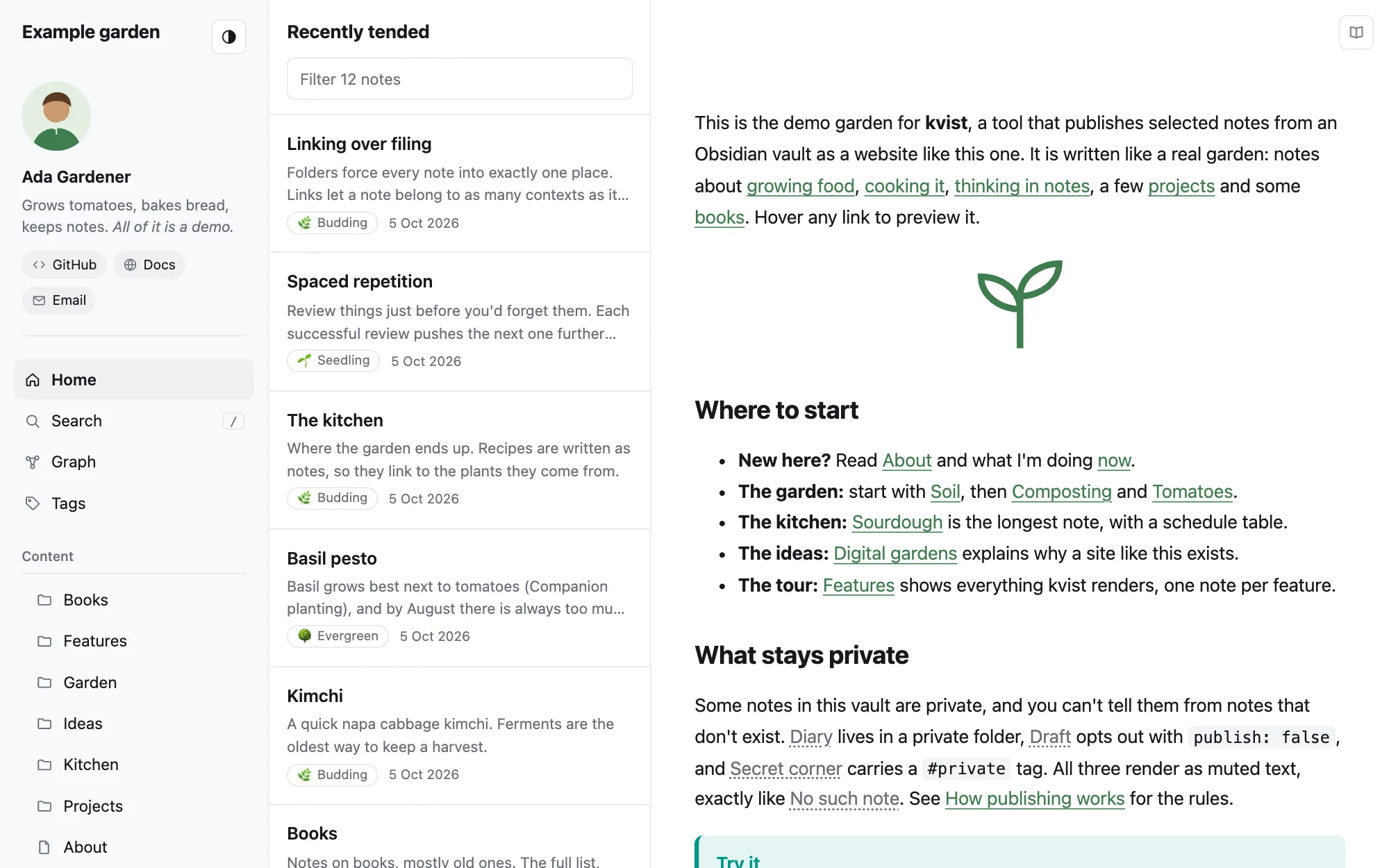
What a site looks like: your menu and folders, recent notes, and your home note. -
Check the report
Click the kvist status in the status bar, or run kvist: Open publish report. It lists what is public, and anything worth a look: links from public notes to private ones (shown as plain text on the site), embeds that were left out, and warnings from the server.
Part 4: make it yours
The site's title, home page, menu and colors are set in a note in your vault called _site.md, the settings note. You edit it in Obsidian like any other note, on any device, and changes go live with your next publish. It's never published as a page.
Run kvist: Open site settings note from the command palette (or press Open settings note in the plugin's settings). The first time, it creates Kvist/_site.md with every setting ready to fill in:
---
title: Ada's garden
description: Notes on what I'm learning and building
home: "[[Welcome]]"
accent: "#8a4f9e"
primary_links:
  - "[[About]]"
secondary_links:
  - https://mastodon.social/@ada
---
Settings for your kvist website. …
Fill in the properties you want and leave the rest empty; empty ones keep their default. Then run Publish now. Customizing the site explains every setting.
Publishing from more devices
For each extra device (another computer, your phone):
- Create a new token on the server, named after the device so you can tell them apart later:
docker compose exec kvist kvist token create --name phone. - Make sure the plugin files are in that device's copy of the vault. If you sync your vault with Obsidian Sync or iCloud, including the
.obsidianfolder, they usually arrive by themselves. - Enable the plugin and paste the new token. The server URL and site sync with your vault; the token never does.
If you turn on Publish automatically, do it on one device only. Here's why.
What next
- Publishing notes: every way to make a note public or private.
- Writing notes: what works on the site, from callouts to math.
- Running the server: updates, backups and Cloudflare.