Guides
Customizing the site
How your site looks is set in one note in your vault, _site.md. Edit it in Obsidian on any device, publish, and the site follows.
The settings note
The settings note is a note called _site.md vault. It can be in any folder; the plugin creates it next to your public notes, as Kvist/_site.md. It is never published as a page, even inside a public folder. Open it, or create it, with kvist: Open site settings note.
---
title: Ada's garden
description: Notes on what I'm learning and building
author: Ada
language: en
home: "[[Welcome]]"
groups: [articles, projects, books]
accent: "#8a4f9e"
footer: © 2026 Ada · [Contact](mailto:ada@example.com)
primary_links:
  - "[[About]]"
secondary_links:
  - "[[Reading list]]"
  - https://mastodon.social/@ada
---
Settings for my website.
Settings are the note's properties, so you can edit them in Obsidian's property editor. Leave a property empty to keep its default.
| Property | What it does |
|---|---|
title | Site name, shown top left and in browser tabs. |
description | Shown under the title on the home page and in link previews. |
author, language | Used in page metadata and feeds. language is a code like en or sv, and it also sets the language of the site's own words (menu, dates, search). The built-in theme speaks English, Swedish (sv), German (de), French (fr) and Spanish (es); other languages show English. |
home | A published note to use as the home page, as a link: "[[Welcome]]". Obsidian keeps it up to date if you rename the note. Without it, the published folder's own note is the home page, if it has one (The home page). |
groups | Tags that group the menu (below). |
primary_links, secondary_links | Links at the top of the menu, and under Links at the bottom (below). |
avatar, bio, profile_links | A profile at the top of the menu (below). |
image | The picture shown when a page is shared on social media or in chats, unless the note has its own image or cover: "[[preview.png]]" or a web address. About 1200×630 pixels works everywhere. Notes get a generated picture instead (see social_images below), so this one shows for the home page, folders and tags. Use PNG, JPEG or WebP: social media don't show SVG or AVIF, so those are skipped. |
favicon | The small icon in browser tabs and bookmarks: "[[icon.png]]" or a web address. A square PNG or SVG of at least 64×64 pixels. Without it, the theme shows a green sprout. |
analytics, analytics_id, analytics_url | Visitor statistics with Plausible, Umami or GoatCounter (below). |
strict_line_breaks | true to treat a single line break as a space, like Obsidian's Strict line breaks. By default it is kept as a line break. |
| Anything else | A theme setting, such as accent or footer. See Theme settings. |
---
primary_links:
  - "[[About]]"
  - https://mastodon.social/@ada
secondary_links:
  - "[[Reading list]]"
  - "Blog: https://ada.example.com"
---
Each item is a link to a published note ("[[About]]" or "[[About|Me]]"), a Markdown link ("[Code](https://…)"), Name: https://…, or a bare address. Mastodon, GitHub and the other services from profile_links are named for you. Links to other websites get an arrow, and addresses on your site like /about/ work too. A link to a note that isn't published is left out, with a warning in the publish report.
Put the items in quotes, so YAML doesn't read the square brackets as a list. In Obsidian's properties view, both must be List properties, so each link is its own item: if one shows as Text, click the icon next to its name and choose Property type → List.
Older settings notes list the Links in the note's text instead: each list item that is a single link. That still works when there is no secondary_links property.
Publish rules, the theme and the site's address can only be set on the server, so a synced vault can't change what's public. If the settings note tries, the publish report shows a warning.
Only one settings note
If the vault has two notes called _site.md, publishing stops and names both, so you can delete one.
A profile in the menu
Add a picture, a line about yourself and your links to the top of the menu:
---
author: Ada
avatar: "[[ada.jpg]]"
bio: Notes on what I'm learning and building.
profile_links:
  - https://github.com/ada
  - https://mastodon.social/@ada
  - mailto:ada@example.com
  - Blog: https://ada.example.com
---avatar(orlogo) is an image in your vault, or a web address. It is published even though no note shows it, unless it sits in an excluded folder.biois a line of Markdown shown under your name (author).profile_linksis a list of addresses. GitHub, GitLab, Mastodon, Bluesky, LinkedIn, X, YouTube and email links are named for you; writeName: https://…or[Name](https://…)to choose the label. Only web andmailto:addresses are kept.- The links carry
rel="me", so Mastodon can show your site as verified once you link to it from your Mastodon profile.
Turn the profile off without deleting it with the theme setting show_profile: false.
Grouping the menu by tags
The menu's Content section shows your folders as a tree: the arrow next to a folder opens it, and the folders around the current page are open already. When you publish one folder, the tree starts inside it: its subfolders are the top of the menu, not the folder itself (see root_folder). Each folder can have its own icon or emoji instead of the plain folder (see Folder icons). If your notes aren't sorted into folders at all, group them by tags instead:
---
groups: [articles, projects, books]
---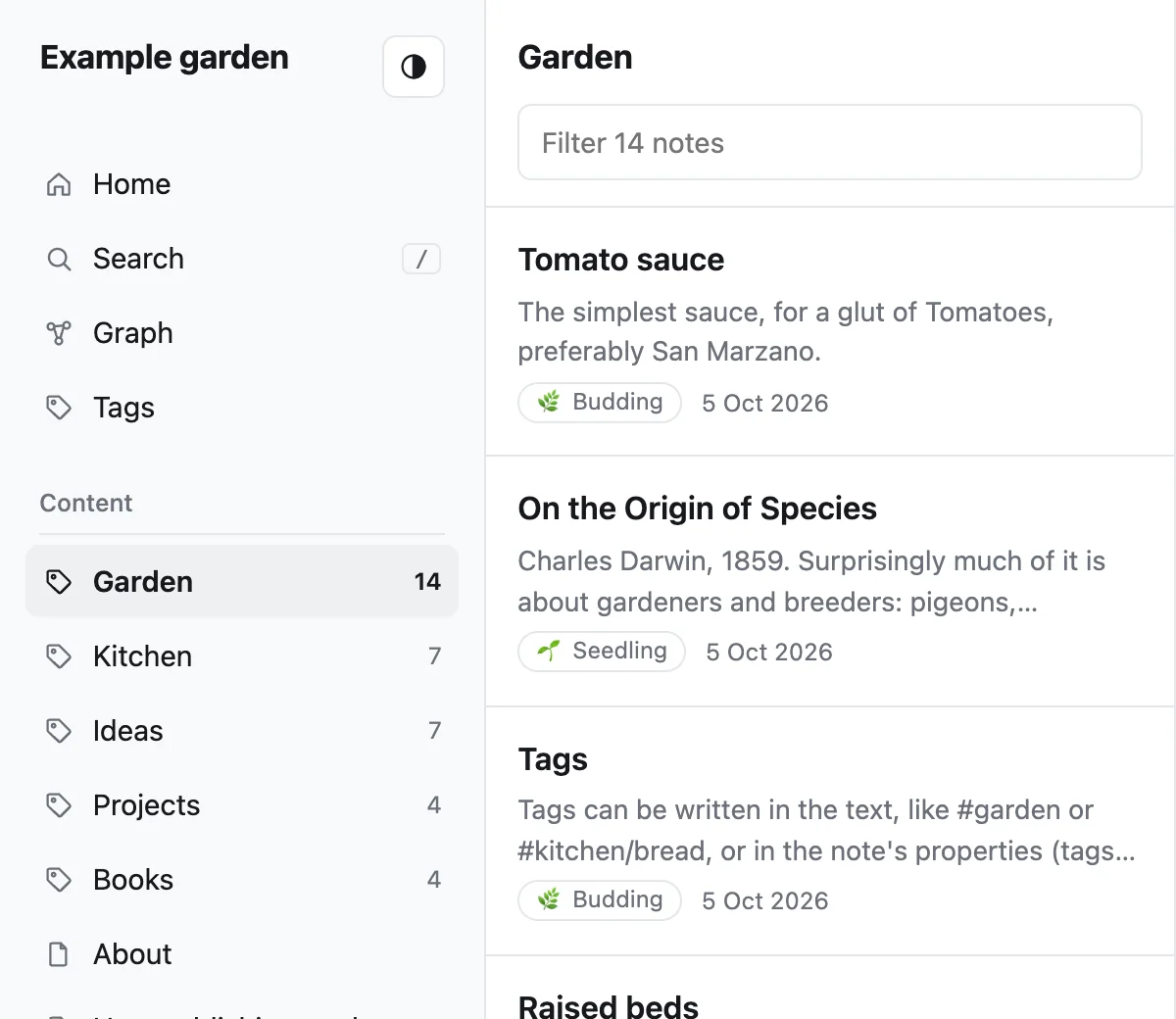
Then tag each note, either in the text (#articles) or in its properties (tags: [articles]). Now:
- The menu shows Articles, Projects and Books, in your order, each with a note count.
- Clicking one lists its notes in the middle column.
- On a note, the middle column shows the other notes in its group, and the group is highlighted.
- The home page shows a card per group.
Some details:
- Child tags count: a note tagged
#projects/kvistbelongs to Projects. - A note with two group tags appears in both groups. On its own page it uses the one listed first in
groups. - Notes without a group tag are still published. Their page shows their folder in the middle column instead.
- A group with no published notes yet is left out of the menu.
- The label is the tag with a capital first letter:
articlesbecomes “Articles”.
The layout
The built-in theme, garden, has three columns on a computer screen:
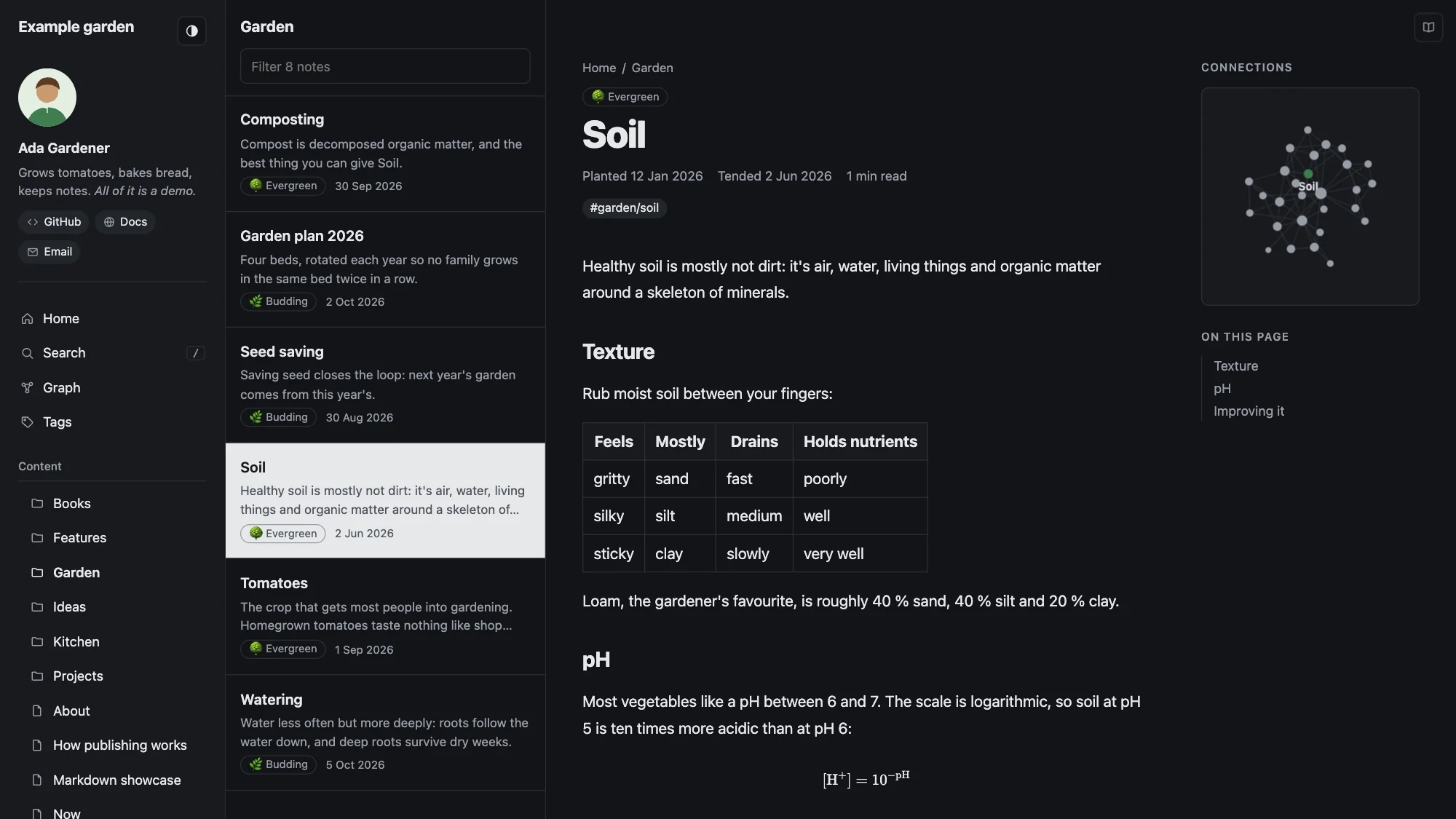
- Menu: Home, Search, Graph, Tags and your
primary_links, then your folder tree or groups, and yoursecondary_links. - List: the notes around the current page, with a filter box. On the home page, the most recently updated notes.
- Note: the page itself, with its folders above the title (breadcrumbs) and backlinks at the bottom. On wide screens, the table of contents and a small graph of connected notes sit beside it. The book button in the top corner (reader mode) hides the menu and the list, for reading.
Search (press /) looks through titles, tags and text. Words starting with # filter by tag: #recipes soup finds soups among the notes tagged #recipes or one of its child tags, and #recipes alone lists them all.
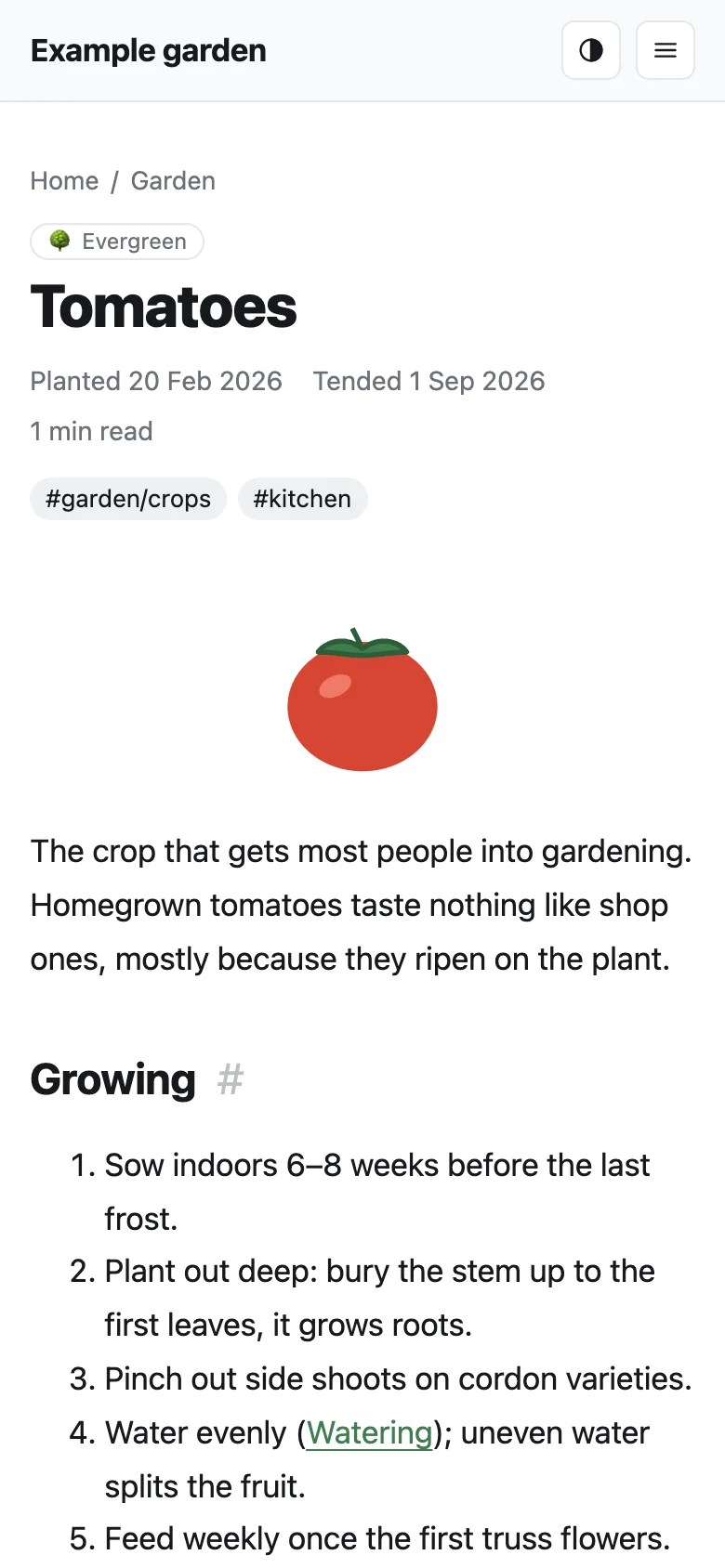
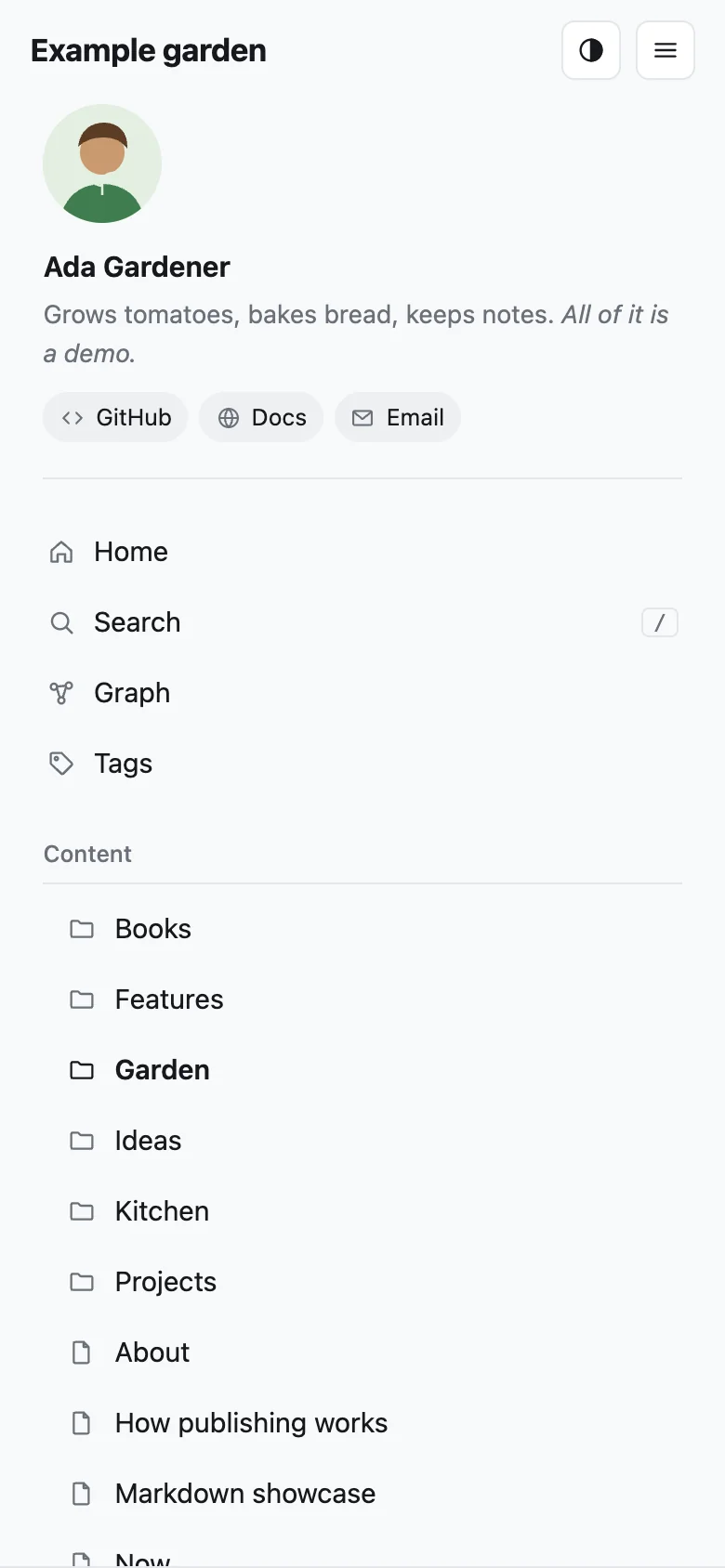
On a phone, the menu folds into a button at the top, and the list moves below the note. Visitors can switch between light and dark with the button next to the title; by default the site follows their system setting.
Theme settings
Add these as properties of the settings note vault, or under the site's [site.theme_params] in kvist.toml server. The note wins if both set one. Colors start with #, so write them in quotes in the properties: accent: "#8a4f9e".
| Setting | Default | What it does |
|---|---|---|
accent | "#3f7d4e" | Color of links and highlights. |
groups | [] | Tags that group the menu (above). Empty: folders. |
show_list | true | Show the middle list column. |
list_max | 100 | Notes in the list before a “more…” link. |
list_images | true | A note's image or cover as a small square beside its title in the list, and as a wide picture atop its card on folder and home pages. Notes without one show text only (cards can get a color cover, see generated_covers). |
generated_covers | false | Cards without a picture get a cover in soft colors instead: a wide one on note cards (folder and tag pages), a low strip on the folder or tag cards on the home page. Each card gets one of eight colors that look good together, picked from its address, so a note keeps its color. Light and dark mode have their own shades. Notes with an image or cover keep their picture. |
home_recent | 12 | Notes in the home page's “Recently tended” list. |
date_format | "2 Jan 2006" | How dates look. Write the date 2 January 2006 the way you want dates shown, e.g. "2006-01-02" or "Jan 2, 2006". Month and day names follow language. |
show_toc | true | The “On this page” contents beside notes. |
show_breadcrumbs | true | The note's folders above its title, like Home / Recipes / Soups, each a link to its folder. |
show_backlinks | true | “Links to this note” at the bottom of notes. |
show_related | true | “Related notes” at the bottom of notes: up to five notes with words, tags or linked notes in common, which the note doesn't link to yet. The server works them out from your published notes when it builds the site; nothing is sent anywhere. |
instant_navigation | true | Links open in place instead of reloading the whole page: the menu keeps its scroll position and open folders, and search and the graph stay loaded, so moving around feels instant. Back and forward work as usual, and Ctrl/Cmd-click still opens a new tab. |
stacked_pages | false | Links in a note open the linked note beside it instead of in its place, so a reader can follow a trail of notes side by side. Each new note slides in from the right; earlier ones slide under it, leaving their title on a narrow spine you can click to bring them back. The × closes a note and the ones after it. The open notes are part of the address, so back, reload and shared links keep them. Only on wider screens; on a phone, links open as usual. |
link_previews | true | Hovering a link to another note shows a preview. On a phone, the first tap previews, the second opens the note. |
graph_orphans | true | Show notes without any links in the graph. |
graph_tags | false | Show tags as nodes in the graph, connected to their notes. |
graph_node_size | "links" | "links" makes well-linked notes bigger; "same" draws every note the same size. |
graph_link_distance | 45 | Length of the links in the graph. A larger number spreads it out. |
reader_mode | true | A book button in the top corner that hides the menu, the list and the contents, leaving only the page. Visitors' choice is remembered. Not shown on phones, where the page already has the screen. |
show_profile | true | Show the profile, if the settings note has one. |
show_properties | false | A list of the note's properties under its title. Only properties the server lists in expose_frontmatter server are shown; all others stay private. |
show_graph | true | The Graph button and the small graph beside notes. |
social_images | true | Make a preview picture for every note without its own image: the note's title and description and your site's name, in your accent color. It's what chats and social media show when someone shares the note. Titles in scripts the built-in font lacks (Chinese, Japanese, …) get the site's image instead. false uses the site's image for all notes. |
tag_min_notes | 2 | Tag pages with fewer notes than this ask search engines not to list them and are left out of the sitemap: a page with one link on it makes a poor search result. The page still works for visitors. 0 lets search engines list every tag page. |
footer | "" | Text at the bottom of the menu. Markdown works. |
code_style_light, code_style_dark | "github", "github-dark" | Code highlighting styles. |
mermaid_url | jsDelivr | Where diagrams' Mermaid script comes from. It's large, so it isn't bundled and loads only on pages with a diagram. To serve it yourself, put a copy in the theme overrides folder and give its name, like "vendor/mermaid.min.js", and set mermaid_integrity to its hash or to "". |
Growth stages
Digital gardens often mark how finished a note is. Add stage: seedling, budding or evergreen to a note's properties, and the site shows 🌱, 🌿 or 🌳 next to it. This needs expose_frontmatter = ["stage"] in the server's [site.publish], which the default config already has.
Visitor statistics
To count visitors, choose one of three privacy-friendly services in the settings note. None of them set cookies, so no cookie banner is needed.
---
analytics: plausible
analytics_id: garden.example.com
---
analytics | analytics_id |
|---|---|
plausible | The site's domain, as you added it in Plausible. Without it, the domain of your site's address. |
umami | The website ID from Umami's settings, like 94db1cb1-74f4-…. |
goatcounter | Your GoatCounter code: ada for ada.goatcounter.com. |
If you run the service yourself, set analytics_url to its script, for example https://stats.example.com/js/script.js; for a self-hosted GoatCounter, analytics_id is its count address, https://stats.example.com/count. Addresses must start with https://. A setting kvist can't use is left out with a warning in the publish report, and analytics: none turns counting off. The same settings work in the server's [site.theme_params].
Search engines and sharing
kvist describes every page for search engines and social media, with nothing to set up:
- A title, a description and a canonical address on every page, and a preview picture with Open Graph and X (Twitter) tags.
- Structured data (schema.org) that tells search engines a note is an article, with its dates, author, tags and its place in your folders.
/sitemap.xmlwith the date each page last changed, and/robots.txtpointing to it.- Permanent redirects when a note moves, so old links and search results keep working.
noindexon unlisted notes, on the “not found” page and on tag pages with a single note (seetag_min_notes), so they stay out of search results.- The size of every image, so pages don't jump while images load.
What helps most is in your notes:
- Give important notes a
description. Search results show about 155 characters. Without one, kvist uses the note's first paragraph. - Describe your images after a
|:![[tomatoes.jpg|Ripe tomatoes on the vine]]. This is what search engines and screen readers read. Without it, kvist uses the file name (raised-beds.jpgreads “Raised beds”), but not names likeIMG_2034.jpg, so name your files well or describe them. - Set
authoranddescriptionin the settings note, andprofile_linksto your other profiles: search engines use them to know who writes the site. - Tell search engines about your sitemap once: add your site in Google Search Console and Bing Webmaster Tools and submit
https://your-site/sitemap.xml.
Going further
To change more than these settings, you can replace individual theme files, or write a whole theme. Both are done on the server; see Writing a theme.